LIVEReading: #147 Voice CloneTotal time: 14 minSteps: 6Worked first time: 76%GitHub stars: 47.2kTested: Mac · Win · LinuxUpdated: 2h ago LIVEReading: #147 Voice CloneTotal time: 14 minSteps: 6Worked first time: 76%GitHub stars: 47.2kTested: Mac · Win · LinuxUpdated: 2h ago
CBW
#147github.com/ai-magic/voice-cloneWed, May 13, 2026

Make AI read your email
using your own voice.

This project got 47,000 stars on GitHub in 36 hours. We tested it. It works. We will show you exactly how — every step, every command, every error you might see.

// Build stats

  • Total time14 min
  • Number of steps6
  • DifficultyMedium
  • Worked first time76%
  • Need a GPU?No
  • Need an API key?No
What you will build▶ play preview

An AI that sounds like you, reading your inbox out loud.

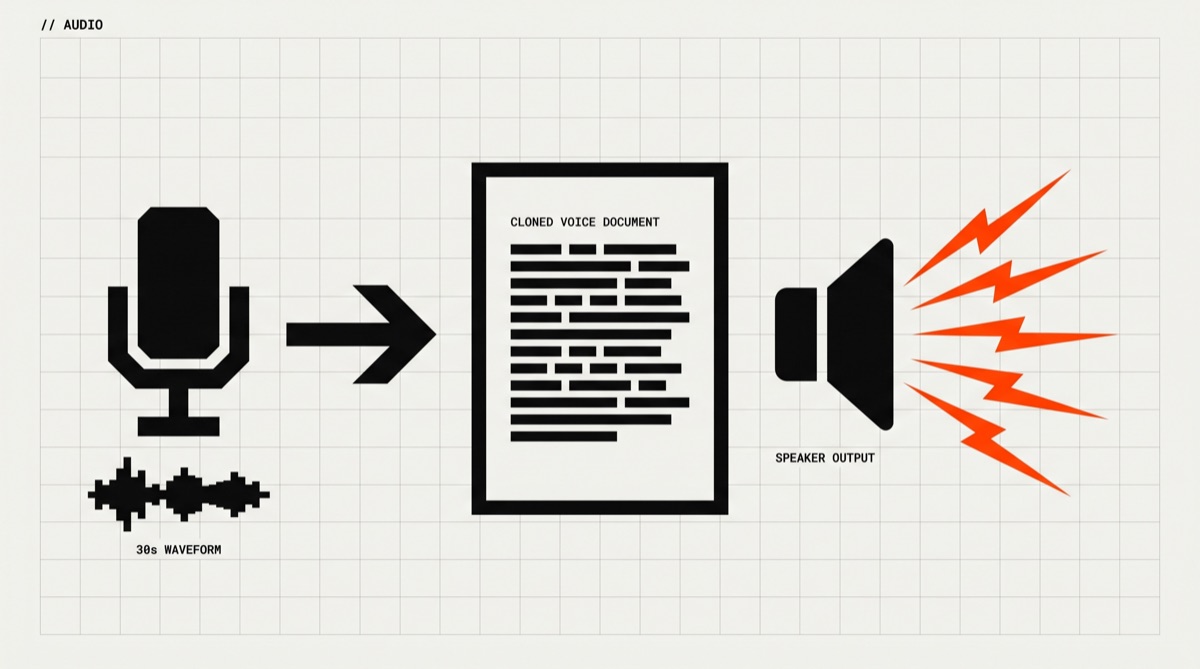
Record 30 seconds of your voice. The AI learns it. Now any text — your email, a PDF, anything — gets read in your voice. Spooky, useful, and runs on your laptop.

Your voice → reads email →
“Hi Michael, you have 3 new messages. The first one is from...”
// Before you start

What you need (only 5 things)

  • A laptop from the last 5 yearsMac, Windows, or Linux all work
  • Python 3.10 or newerWe show you how to install it
  • A microphoneYour laptop's mic is fine
  • A Gmail accountFor the email reader part
  • 14 minutesPlus coffee for step 2 (it's slow)
  • ~3GB free disk spaceThe AI model is the big part
SkimAlready know what you are doing?
Copy all 6 commands ↓
# 1. Get the code
$ git clone github.com/ai-magic/voice-clone
$ cd voice-clone

# 2. Install (slow part, ~4 min)
$ pip install -r requirements.txt

# 3-6. Record, train, connect, test
$ python record.py
$ python train.py --sample me.wav
$ python gmail_setup.py
$ python read_inbox.py
01
Step 1 of 6

Get the code from GitHub

1 min

GitHub is where people share code. We need to download this project to our computer. The tool that does this is called git. It is already on most computers. We will use one command: git clone.

Terminal · mac
$ git clone github.com/ai-magic/voice-clone $ cd voice-clone
What you should see
Cloning into 'voice-clone'...
remote: Counting objects: 234, done.
Receiving objects: 100% (234/234), 1.2 MiB | 4.5 MiB/s
✓ done.
This might happen

git is not installed yet (Windows only)

'git' is not recognized as an internal or external command

Download git from git-scm.com. Click “Next” through the install. Then close your terminal and open it again. Try the command above.

Checkpoint

Did you see ✓ done in your terminal?

02
Step 2 of 6

Install the Python tools (slow part)

4 min

The code uses tools made by other people. We need to download them. This is called installing packages. The tool is called pip. It downloads everything we need, all at once. Go make coffee. This takes about 4 minutes.

Terminal · mac
$ pip install -r requirements.txt
What you should see (lots of text, do not panic)
Collecting torch==2.1.0
Downloading torch-2.1.0-cp310-...whl (200 MB)
Collecting transformers==4.35.0
... (this goes on for a while)
Installing collected packages: torch, transformers, ...
✓ Successfully installed torch-2.1.0 transformers-4.35.0 ...
This might happen (the most common error)

torch CUDA error

RuntimeError: No CUDA GPUs are available ERROR: Could not find a version that satisfies torch==2.1.0+cu118

This means your computer does not have a fancy graphics card (which is fine!). Open the file requirements.txt in any text editor. Find the line torch==2.1.0+cu118 and change it to torch==2.1.0. Save. Run the command again. It will work now.

This might also happen

pip is not the right Python version

ERROR: Python 3.8 is too old. Requires Python 3.10+

Use pip3 instead of pip. Or install Python 3.10 from python.org.

Checkpoint

Do you see Successfully installed at the bottom?

03
Step 3 of 6

Record 30 seconds of your voice

1 min

Now the AI needs to hear you talk. We will record 30 seconds. The script will pop up text for you to read. Just read it normally — like you are talking to a friend.

Terminal · mac
$ python record.py
What you should see
Voice Clone Recorder
─────────────────────
Please read this text:
  “The quick brown fox jumps over the lazy dog...”

Recording in 3... 2... 1...
🎤 Recording (30s)
✓ Saved as me.wav
This might happen

No microphone found

OSError: No default input device available

On Mac, you may need to give the terminal permission to use the mic. Go to System Settings → Privacy → Microphone. Turn on Terminal. Try again.

Checkpoint

Is there a new file called me.wav in your folder?

04
Step 4 of 6

Train the AI on your voice

5 min

Now we teach the AI what you sound like. This is called training. The AI listens to me.wav and learns the shape of your voice. This is the second slow step. Use this time to check your email.

Terminal · mac
$ python train.py --sample me.wav
What you should see (it takes 5 min, be patient)
Loading voice sample: me.wav (30.0s)
Analyzing voice features...
Training model: epoch 1/50 ████░░░░░░░░ 8%
Training model: epoch 25/50 ████████████░ 50%
Training model: epoch 50/50 ████████████████ 100%
✓ Voice profile saved as my_voice.bin
Checkpoint

Do you have a file called my_voice.bin?

05
Step 5 of 6

Connect to your Gmail (1-time setup)

2 min

Now we connect to Gmail so the AI can read your inbox. This opens a Google login page in your browser. You log in. You say “OK” to the permission. Done. Your password never goes to the code — only to Google.

Terminal · mac
$ python gmail_setup.py
What you should see
Opening Google login in your browser...
Waiting for you to log in...
(your browser will open Google's login page)
(log in, then click “Allow”)
✓ Got Gmail token. Saved as gmail_token.json
This might happen

“This app is not verified” warning from Google

Google hasn't verified this app

This is normal! Click “Advanced”, then “Go to (unsafe)”. It is safe — the code runs on YOUR computer, not on a server. Google just shows this for any app that is not a big company.

Checkpoint

Do you have a file called gmail_token.json?

06
Step 6 of 6 · Final

Make your AI read your inbox

1 min

The moment of truth. One command. Your computer will read your unread emails out loud — in your own voice. Turn up your speakers.

Terminal · mac
$ python read_inbox.py
What you should see (and hear!)
Voice Clone Email Reader
────────────────────────
Loading your voice... ✓
Connecting to Gmail... ✓
Found 3 unread emails.

🔊 Reading email 1/3...
🔊 Reading email 2/3...
🔊 Reading email 3/3...
✓ done.
// Status

cooked. baked. worked.

You just built an AI that sounds like you. From zero to working in 14 minutes. The same project that took GitHub 36 hours to find — now runs on your laptop.

$ python read_inbox.py
🔊 Reading email 1/3... ✓
🔊 Reading email 2/3... ✓
🔊 Reading email 3/3... ✓
done.
cooked · baked · worked ✓
// the spicy bit

The honest part: this is a spicy step in disguise

Step 4 is sold as “5 minutes” but on older laptops it can hit 20+. If it crawls past 10 min, that is not a bug — your CPU is just slower. Press Ctrl+C, re-record a shorter sample, and start again. It still works.

And the Google “not verified” warning at step 5 freaks people out. It is harmless here — your password never touches the code. But that screen has scared off a real number of readers, so this is the spot where we tell you straight: click Advanced, click Go to (unsafe), move on.

// Things that broke for other people

Trouble? Try these first.

7 fixes
AllStep 2 · pip install failsmost common
“torch CUDA error”
ERROR: Could not find a version that satisfies torch==2.1.0+cu118
Your computer does not have a special graphics card. Open requirements.txt in any text editor. Change torch==2.1.0+cu118 to just torch==2.1.0. Save. Run pip install -r requirements.txt again. Will work.
MacStep 3 · Recording failscommon
“No microphone found” on Mac
OSError: No default input device available
Mac blocks the mic for new apps. Go to System Settings → Privacy & Security → Microphone. Turn on the switch for Terminal. Quit terminal. Open it again. Run the command.
WindowsStep 1 · git not foundcommon
“git is not recognized”
'git' is not recognized as an internal or external command
Git is not installed yet on Windows. Go to git-scm.com/download/win. Download and run the installer. Click Next on every screen (the defaults are fine). Close your terminal. Open a new one. Try again.
AllStep 2 · Python version
“Python 3.8 is too old”
ERROR: Python 3.8 is too old. Requires Python 3.10+
You have an older Python. Try pip3 instead of pip. If that fails too, install the latest Python from python.org/downloads. Restart your terminal.
AllStep 5 · Google warning
“This app is not verified” from Google
This is fine. Google shows this for any app that is not a big company. Click Advanced at the bottom of the warning page. Then click Go to (unsafe). The code runs on YOUR computer. Your password never leaves Google.
AllStep 4 · Training is too slow
Training takes more than 10 minutes
If you have an older laptop, this is normal. The 5-minute number is for newer laptops. Just wait. If it takes more than 20 minutes, press Ctrl+C to stop it. Try again with a shorter sample: python record.py --seconds 15.
AllStep 6 · Voice sounds weird
“The AI does not sound like me”
Two reasons usually. 1) Your recording was too noisy. Record again in a quiet room. 2) Your recording was too short. Try 60 seconds instead of 30. Run python record.py --seconds 60 and then train again.
// the daily build

Liked this? One a day, in your email.

Tomorrow's best AI project. Same kind of guide. Free. No spam ever.