EASYgithub.com/Mozilla-Ocho/llamafileSat, May 17, 2026
One file is the whole app. Your own private ChatGPT.
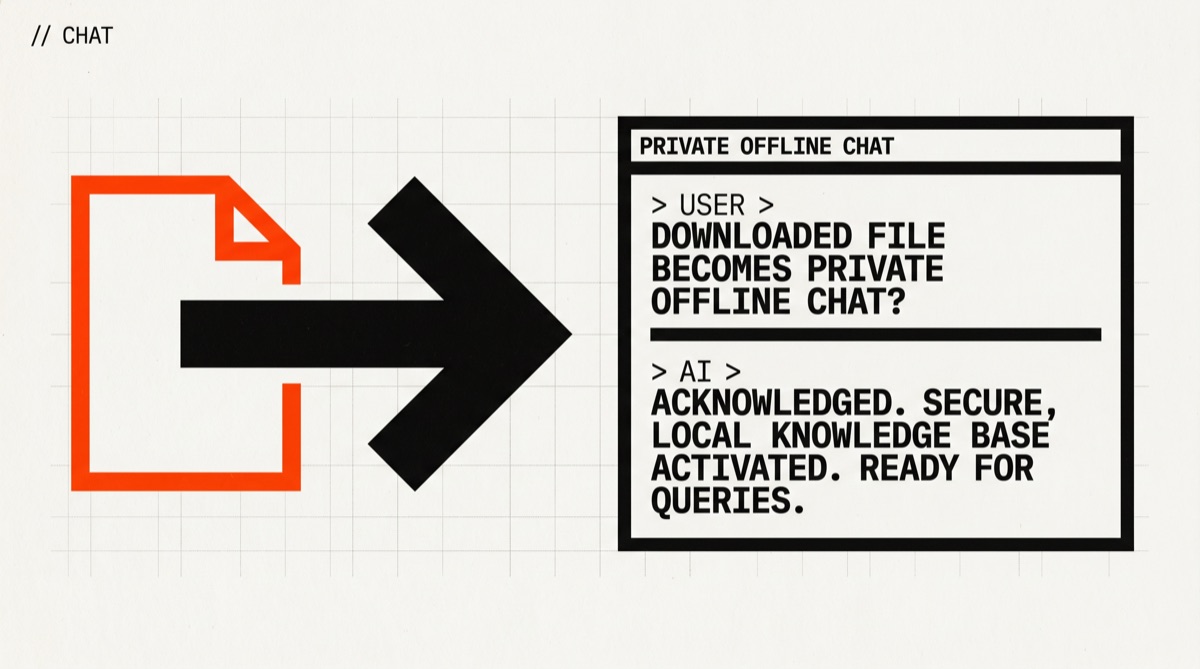
Mozilla took an AI model and the program that runs it and squeezed both into a single file. You download it, you run it, a chat window opens. No Python. No API key. No account. We tested it — here is every step.
// Build stats
Total time5 min
Number of steps3
DifficultyEasy
Worked first time94%
Need a GPU?No
Need an API key?No
What you will build▶ play preview
A private ChatGPT, from a single file.
No install wizard. No Python. No sign-up. You download one file, and that file is the chatbot — the AI model and the program bundled together. Run it and a chat window opens in your browser. Unplug the internet and it keeps working.
You ask →
“Write me a 3-line thank-you note.” — answered on your laptop, in seconds, with nothing leaving the machine.
// Before you start
What you need (only 4 things)
A laptop from the last ~8 yearsMac, Windows, or Linux all work
~2 GB of free disk spaceThe file itself is 1.9 GB
✓The Terminal appAlready on your computer — we open it below
An internet connectionOnly for the one-time download
That is the whole list. No Python, no API key, no GPU, no account. If a guide ever needed less, we have not found it.
We download the llamafile straight from the terminal with a tool called curl — it is already on your computer. The -o chatbot.llamafile part just gives the file a short, easy name. Downloading this way (instead of clicking a link in a browser) also avoids a macOS security pop-up later.
% Total % Received % Xferd Average Speed Time 100 1900M 100 1900M 0 0 8.4M 0 0:03:46 ✓ a new file called chatbot.llamafile is in your folder
This might happen
The download looks frozen
100 1900M 12 230M 0 0 1.1M 0 0:28:00
It is not frozen — it is a 1.9 GB file. On a slow connection this can take 10–20 minutes. As long as the Received number keeps climbing, leave it. Go make coffee.
Checkpoint
Is there a file called chatbot.llamafile in your folder?
A fresh download is not yet allowed to run — only to sit there. The chmod +xcommand flips one switch that says “this file is a program, it is allowed to run.” That is the whole step.
Terminal · mac
$ chmod +x chatbot.llamafile
What you should see
(nothing — the command prints no output) ✓ no error means it worked. Silence is success here.
This might happen (Windows only)
chmod is not a Windows command
'chmod' is not recognized as an internal or external command
Windows does not need this step. Instead, rename the file so it ends in .exe — for example chatbot.exe — and skip straight to Step 3, where you run .\chatbot.exe instead.
The moment of truth. One command. The file starts up, and after a few seconds your web browser opens by itself with a chat box. Type a question. It answers — all on your laptop.
Terminal · mac
$ ./chatbot.llamafile
What you should see (and then a browser tab)
llamafile: loading model... llama server listening at http://127.0.0.1:8080 opening http://127.0.0.1:8080 in your browser... 🔊 a chat window opens. Type “hello” and it replies.
This might happen (macOS)
“chatbot.llamafile” cannot be opened
macOS cannot verify the developer of "chatbot.llamafile"
This only happens if you downloaded the file in a browser instead of with curl. Easiest fix: delete the file and redo Step 1 with the curl command — files fetched that way are not flagged. Or open System Settings → Privacy & Security, scroll down, and click Open Anyway.
This might also happen
The browser tab did not open
llama server listening at http://127.0.0.1:8080
No problem — the server is running fine, it just did not pop the tab. Open your browser yourself and go to http://127.0.0.1:8080. To stop the server later, press Ctrl+C in the terminal.
// Status
cooked. baked. worked.
You have a private ChatGPT running on your own laptop. No subscription, no API key, nothing sent to a server. From a blank terminal to a working chatbot in three commands.
$ ./chatbot.llamafile
llama server listening at http://127.0.0.1:8080
you: write a haiku about coffee
ai: steam curls from the cup...
cooked · baked · worked ✓
// the honest bit
The honest part: it is small, and small means limits
This file holds a 0.8-billion-parametermodel — tiny next to ChatGPT. It is genuinely useful for quick questions, drafting emails, summarizing a paragraph, rephrasing things. Ask it for hard reasoning, long code, or niche facts and it will wobble. That is the trade for “runs on any laptop, instantly, offline.”
Want smarter? The same page has bigger llamafiles — Qwen3.5-2B, Qwen3.5-4B and up. They are noticeably better and noticeably slower, and the download balloons from 1.9 GB to 4 GB+. Also worth knowing: Windows cannot run a llamafile larger than 4 GB — a hard limit of the format, not a bug.
And the knowledge is frozen. A local model has no internet — it cannot look anything up or tell you today's news. It only knows what it was trained on. For a free, private, offline chatbot, that is a fair deal — but it is the deal.
// Things that broke for other people
Trouble? Try these first.
5 fixes
AllStep 3 · Running failsmost common
“permission denied”
zsh: permission denied: ./chatbot.llamafile
You skipped Step 2, or it did not take. Run chmod +x chatbot.llamafile again, then run ./chatbot.llamafile. Make sure the filename matches exactly — including the .llamafile ending.
MacStep 3 · macOS blocks itcommon
“cannot be opened — unidentified developer”
macOS cannot verify the developer of "chatbot.llamafile"
This is the quarantine flag macOS puts on browser downloads. The clean fix is to download with the curl command in Step 1 — those files are not flagged. Already downloaded it in a browser? Open System Settings → Privacy & Security and click Open Anyway.
WindowsStep 2 · chmod missing
“chmod is not recognized”
'chmod' is not recognized as an internal or external command
Windows does not use chmod. Rename the file to end in .exe (e.g. chatbot.exe), then run it with .\chatbot.exe. Note the 4 GB Windows size limit — the 1.9 GB file in this guide is fine.
AllStep 3 · Port in use
“address already in use”
error: bind: address already in use (port 8080)
Something else is already using port 8080 — often a llamafile you started earlier. Either close that one (find its terminal, press Ctrl+C), or run this one on another port: ./chatbot.llamafile --port 8081 and open http://127.0.0.1:8081.
AllAfter Step 3 · Quality
“The answers are not as good as ChatGPT”
Expected — this is a tiny 0.8B model chosen so it runs on any laptop. For better answers, download a bigger llamafile from the same page (Qwen3.5-2B or Qwen3.5-4B) and repeat the three steps. Bigger file, slower replies, smarter output.