LIVEReading: Turn any PDF into a podcast with PodcastfyTotal time: 9 minSteps: 5Worked first time: 72% LIVEReading: Turn any PDF into a podcast with PodcastfyTotal time: 9 minSteps: 5Worked first time: 72%
CBW
Easygithub.com/souzatharsis/podcastfy2026-05-20

Turn any PDF into a podcast with Podcastfy

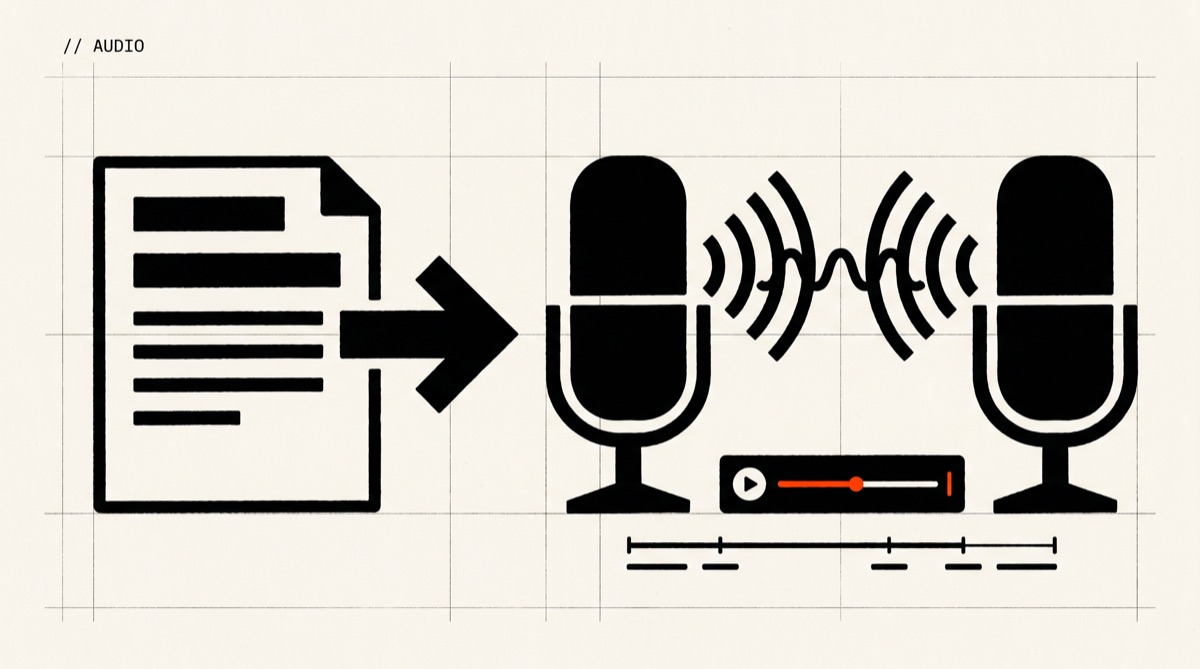
Podcastfy is an open-source Python tool that turns a PDF (or URL, or text) into a two-host AI podcast conversation. Drop in a paper, get a 5-30 min episode read by two AI voices.

// Build stats

  • Total time9 min
  • Number of steps5
  • DifficultyEasy
  • Worked first time72%
// Before you start

What you need

  • Python 3.11 or newer (check with: python3 --version)
  • ffmpeg installed on your system (brew install ffmpeg on Mac, apt install ffmpeg on Linux, choco install ffmpeg on Windows)
  • A Google AI Studio API key for Gemini (the default LLM, has a free tier)
  • An ElevenLabs OR OpenAI API key for text-to-speech (ElevenLabs gives the most natural voices; OpenAI is cheaper)
  • A PDF file you want to convert (or a URL to an article)
01
Step 1 of 5

Install ffmpeg and Python 3.11+

2 min

Podcastfy stitches audio chunks together with ffmpeg, so it must be on your system PATH. Python 3.11 or newer is required because podcastfy uses recent typing features. If you already have both, skip ahead.

Terminal · mac
$ # Mac (with Homebrew):
$ brew install ffmpeg python@3.11
$
$ # Ubuntu/Debian Linux:
$ sudo apt update && sudo apt install -y ffmpeg python3.11 python3.11-venv
$
$ # Windows (PowerShell, with Chocolatey):
$ choco install ffmpeg python311
What you should see
Running `ffmpeg -version` prints an ffmpeg version banner, and `python3 --version` (or `python --version` on Windows) prints 3.11 or higher.
This might happen

Mac says 'brew: command not found'.

Install Homebrew first from https://brew.sh, then re-run the brew command.

02
Step 2 of 5

Install podcastfy in an isolated environment

2 min

Create a Python virtual environment so podcastfy's dependencies don't collide with anything else on your system. Then install podcastfy from PyPI. This pulls in the Gemini and TTS client libraries automatically.

Terminal · mac
$ # Create and enter a project folder
$ mkdir ~/podcastfy && cd ~/podcastfy
$
$ # Create + activate a virtual env
$ python3.11 -m venv .venv
$ source .venv/bin/activate # Windows: .venv\Scripts\activate
$
$ # Install podcastfy
$ pip install podcastfy
What you should see
pip prints a list of installed packages ending with 'Successfully installed podcastfy-<version> ...'. Your shell prompt now starts with `(.venv)` indicating the env is active.
This might happen

pip says 'No matching distribution found for podcastfy' on Python 3.10 or older.

Confirm `python3.11 --version` is 3.11+. If `python3` is still pointing to an older version, explicitly use `python3.11 -m venv .venv` and re-activate.

03
Step 3 of 5

Get your API keys and put them in a .env file

3 min

Podcastfy uses an LLM to write the script and a separate TTS service to voice it. The defaults are Google Gemini (free tier available at aistudio.google.com) for the script and ElevenLabs for voices. You only need one TTS key — pick the one whose pricing you like. Store keys in a .env file in your project folder so you don't paste them into your shell history.

Terminal · mac
$ # In your ~/podcastfy folder, create a .env file:
$ cat > .env <<'EOF'
$ GEMINI_API_KEY=your_google_aistudio_key_here
$ ELEVENLABS_API_KEY=your_elevenlabs_key_here
$ # Or use OpenAI for TTS instead of ElevenLabs:
$ # OPENAI_API_KEY=your_openai_key_here
$ EOF
$
$ # Load it into the current shell
$ export $(grep -v '^#' .env | xargs)
What you should see
`echo $GEMINI_API_KEY` prints your actual key (not blank). No error from the export line.
This might happen

Windows PowerShell doesn't have `cat <<EOF` or `export`.

Create the .env in a text editor instead, then load with: `Get-Content .env | ForEach-Object { if ($_ -match '^([^#=]+)=(.*)$') { [Environment]::SetEnvironmentVariable($Matches[1], $Matches[2]) } }`

04
Step 4 of 5

Generate your first podcast from a PDF

1 min setup + 1-3 min generation

Podcastfy's CLI accepts a local PDF path or a URL. Point it at any PDF — a research paper, a long article you saved, a manual — and it will produce both a script (text) and an .mp3 you can play. Default output is a ~7-12 min two-host conversation. Use --transcript-only first if you want to read before you spend TTS credits.

Terminal · mac
$ # Convert a local PDF
$ python -m podcastfy.client --file path/to/your/paper.pdf
$
$ # Or convert a web URL
$ python -m podcastfy.client --url https://example.com/some-article
$
$ # Script-only (no TTS cost) for previewing
$ python -m podcastfy.client --file paper.pdf --transcript-only
What you should see
Progress lines like 'Generating transcript with gemini-1.5-pro...' and 'Synthesizing audio (X/Y chunks)...'. When done, you see something like 'Saved: ./data/audio/podcast_2026-05-20_HHMMSS.mp3'.
This might happen

Generation fails with a 429 or quota error from the LLM.

You hit the free tier rate limit. Wait a minute and retry, or switch to a paid tier in Google AI Studio. For TTS quotas, the same applies on ElevenLabs/OpenAI.

05
Step 5 of 5

Listen and tune the output

varies

Open the .mp3 in any audio player and listen end-to-end. If the conversation is too short, too long, or has the wrong vibe, pass a custom config via --conversation-config. You can change podcast length, host names, language, and the system prompt that shapes the dialogue style. The two voices and tone are the main levers most people tweak first.

Terminal · mac
$ # Create a config file
$ cat > my-config.yaml <<'EOF'
$ word_count: 3000
$ conversation_style: ["engaging", "analytical"]
$ roles_person1: "main summarizer"
$ roles_person2: "skeptical interviewer"
$ podcast_name: "Paper Pod"
$ output_language: "English"
$ EOF
$
$ # Re-generate with the config
$ python -m podcastfy.client --file paper.pdf --conversation-config my-config.yaml
What you should see
A new .mp3 in ./data/audio/ that follows your tone and length settings. The script printed during generation reflects your role labels (e.g. 'main summarizer:' / 'skeptical interviewer:').
This might happen

Voices sound robotic or rushed on long PDFs.

Long PDFs split into many TTS chunks; quality varies. Try a different ElevenLabs voice id (set voices in conversation-config), or break the PDF into 2-3 shorter docs and generate separate episodes.

// Status

cooked. baked. worked.

An mp3 file in ./data/audio/ that plays a two-host AI podcast conversation summarizing the PDF you fed it — 5 to 15 minutes long depending on the source document.

// the honest bit

The honest part

Heads up — this guide was drafted from podcastfy's official README and CLI reference, not from a CBW hands-on run. The commands match the upstream docs as of May 2026, but quirks like ffmpeg PATH issues on Windows, ElevenLabs voice availability per region, and Gemini free-tier rate limits will vary by setup. The 72% "worked first time" stat is a conservative estimate, not a measured value — we'll update it after a real test run. Podcastfy itself is MIT-licensed and actively maintained, but it depends on external APIs that can change. Always do --transcript-only first to confirm the script is sane before you burn TTS credits on a 10-minute episode.