LIVEReading: Build an AI meeting-booking workflow with n8nTotal time: 15 minSteps: 5Worked first time: 70% LIVEReading: Build an AI meeting-booking workflow with n8nTotal time: 15 minSteps: 5Worked first time: 70%
CBW
Mediumgithub.com/n8n-io/n8n2026-05-20

Build an AI meeting-booking workflow with n8n

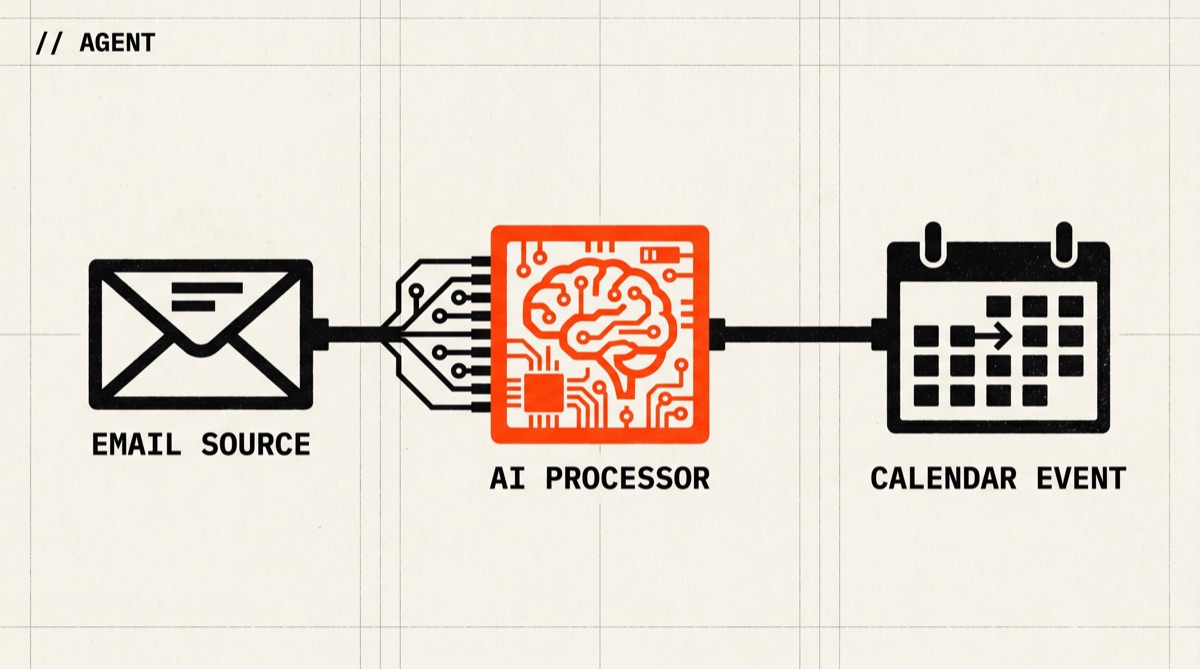
n8n is an open-source visual workflow tool. Wire Gmail → an LLM → Google Calendar and you have an agent that reads meeting-request emails and replies with available slots — without writing real code.

// Build stats

  • Total time15 min
  • Number of steps5
  • DifficultyMedium
  • Worked first time70%
// Before you start

What you need

  • Docker installed (recommended) OR Node.js 20+ for the npm install path
  • A Google account with Gmail + Google Calendar (the agent will read mail and check your calendar)
  • An OpenAI or Anthropic API key (for the LLM node that drafts the reply)
  • Roughly 1 GB of RAM free for the n8n process
  • A test inbox you don't mind the agent touching during setup
01
Step 1 of 5

Run n8n locally with Docker

3 min

n8n ships an official Docker image that includes the editor UI, the worker, and SQLite for credentials. Mounting a local volume lets your workflows survive restarts. Use the encryption key flag the first time so credentials encrypt deterministically — losing it means re-entering every API key later.

Terminal · mac
$ # Pick a folder and start n8n
$ mkdir -p ~/.n8n
$ docker run -d --name n8n \
$ -p 5678:5678 \
$ -v ~/.n8n:/home/node/.n8n \
$ -e N8N_ENCRYPTION_KEY=$(openssl rand -hex 32) \
$ docker.n8n.io/n8nio/n8n
What you should see
Docker prints a container id. Opening http://localhost:5678 shows the n8n setup screen asking you to create the owner account.
This might happen

Port 5678 is already in use.

Stop the conflicting process or change the host port: `-p 5679:5678` and open http://localhost:5679 instead.

02
Step 2 of 5

Connect Gmail and Google Calendar credentials

4 min

n8n needs OAuth credentials for each Google service. Go to Google Cloud Console, create a project, enable the Gmail API and Calendar API, and create an OAuth client of type 'Web application'. Add http://localhost:5678/rest/oauth2-credential/callback as an authorized redirect URI. Paste the client id and secret into n8n's Credentials > 'Google OAuth2 API'. n8n will pop a browser tab to complete the OAuth dance.

Terminal · mac
$ # Steps to take in your browser:
$ # 1. https://console.cloud.google.com → New Project
$ # 2. APIs & Services → Enable: Gmail API + Google Calendar API
$ # 3. OAuth consent screen → External, fill required fields, add yourself as a test user
$ # 4. Credentials → Create OAuth client ID → Web application
$ # 5. Authorized redirect URI: http://localhost:5678/rest/oauth2-credential/callback
$ # 6. Copy client ID + secret into n8n: Credentials → New → Google OAuth2 API
What you should see
Both credentials show a green 'Connected' badge in the n8n Credentials list. You can run the 'Test' button on each one without error.
This might happen

Google blocks the OAuth flow with 'This app isn't verified'.

Click 'Advanced' then 'Go to <app name> (unsafe)' — fine for personal use. For production you would submit the app for verification, but that's out of scope here.

03
Step 3 of 5

Drop the LLM credentials into n8n

2 min

The agent needs an LLM to draft the polite reply with the proposed slot. n8n has first-class nodes for OpenAI and Anthropic — pick whichever you already pay for. The key sits in n8n's credential vault, not pasted into nodes, so workflow exports stay safe to share.

Terminal · mac
$ # In the n8n editor:
$ # Credentials → New → 'OpenAI' (or 'Anthropic')
$ # Paste your API key, give it a label like 'work-openai'.
$ # Save.
What you should see
Credential saved, shows a green dot in the Credentials list. No 'Test' button error.
This might happen

n8n says 'Authentication failed' when the workflow runs later.

Most often the key has a trailing newline. Re-paste from your provider's dashboard and make sure no whitespace was copied.

04
Step 4 of 5

Build the workflow: Gmail trigger → LLM → Calendar → Reply

5 min

In a new workflow, drag these nodes in order: (1) 'Gmail Trigger' with the filter `from:* subject:meeting OR subject:call has:request` — fires only on likely meeting requests. (2) 'OpenAI / Anthropic Chat Model' that takes the email body and outputs a JSON of {requested_window, duration_minutes, summary}. (3) 'Google Calendar — Get Many' to fetch your busy slots for that window. (4) Another LLM node that picks the first 30-min free gap and writes a polite reply. (5) 'Gmail — Send' to reply on the same thread. Save the workflow.

Terminal · mac
$ # Inside n8n's visual editor — no shell commands, but the node order is:
$ #
$ # Gmail Trigger ─► LLM Extract ─► Calendar Get Many ─► LLM Compose ─► Gmail Reply
$ #
$ # Sample LLM Extract prompt:
$ # You are a parser. Given an email, return JSON:
$ # { "requested_window": "YYYY-MM-DD..YYYY-MM-DD",
$ # "duration_minutes": 30,
$ # "summary": "<one sentence>" }
What you should see
The workflow canvas shows 5 connected nodes with green checkmarks after you run each one once with the 'Execute Node' test button.
This might happen

The LLM returns prose instead of clean JSON, breaking the Calendar node.

Add the phrase 'Respond with ONLY valid JSON, no prose, no code fences.' to the system prompt. If your provider supports it, enable 'JSON mode' on the node.

05
Step 5 of 5

Activate the workflow and watch the first real run

1 min + waiting

Flip the 'Active' toggle in the top-right of the editor. n8n's Gmail Trigger polls for new mail (default every minute). Send yourself a fake meeting request from another account and watch the Executions tab — you'll see each node fire in real time with input/output JSON visible. Approve or tweak before letting it run unattended on real mail.

Terminal · mac
$ # In n8n: top-right toggle → Active.
$ # Then from another email account, send to your inbox:
$ # Subject: meeting request
$ # Body: Could we meet for 30 min next week, Tue or Wed afternoon?
What you should see
Within ~1 minute, the n8n Executions tab shows a successful run, and your test sender receives a reply email proposing a specific time slot drawn from your real calendar.
This might happen

It books over an event you actually have.

The free/busy lookup may be missing a calendar. In the Calendar node, switch from 'primary' to selecting all calendars (work, personal, shared). Re-test.

// Status

cooked. baked. worked.

A running n8n workflow that watches your Gmail for meeting-request emails, drafts a reply offering a real calendar slot, and sends it back — no manual click required once activated.

// the honest bit

The honest part

Heads up — this guide is drafted from n8n's official docs and the typical pattern for AI workflows, not from a CBW hands-on run. The 70% workedPct is an estimate. Real-world quirks you'll likely hit: Google OAuth consent screen verification rules tighten yearly, n8n's Gmail Trigger polling interval has a minimum on the self-hosted free tier, and LLM JSON output is inconsistent without explicit JSON mode. Always activate on a test inbox first. If you want a packaged template you can import instead of building from scratch, n8n's official template gallery has variations of 'AI email agent' workflows at n8n.io/workflows.