LIVEReading: ComfyUI · local AI imagesTotal time: 15 minSteps: 5Worked first time: 80%GitHub stars: 70k+GPU: recommendedAPI key: none LIVEReading: ComfyUI · local AI imagesTotal time: 15 minSteps: 5Worked first time: 80%GitHub stars: 70k+GPU: recommendedAPI key: none
CBW
#006github.com/comfyanonymous/ComfyUIWed, May 14, 2026

Generate AI images locally with ComfyUI. No cloud. Free.

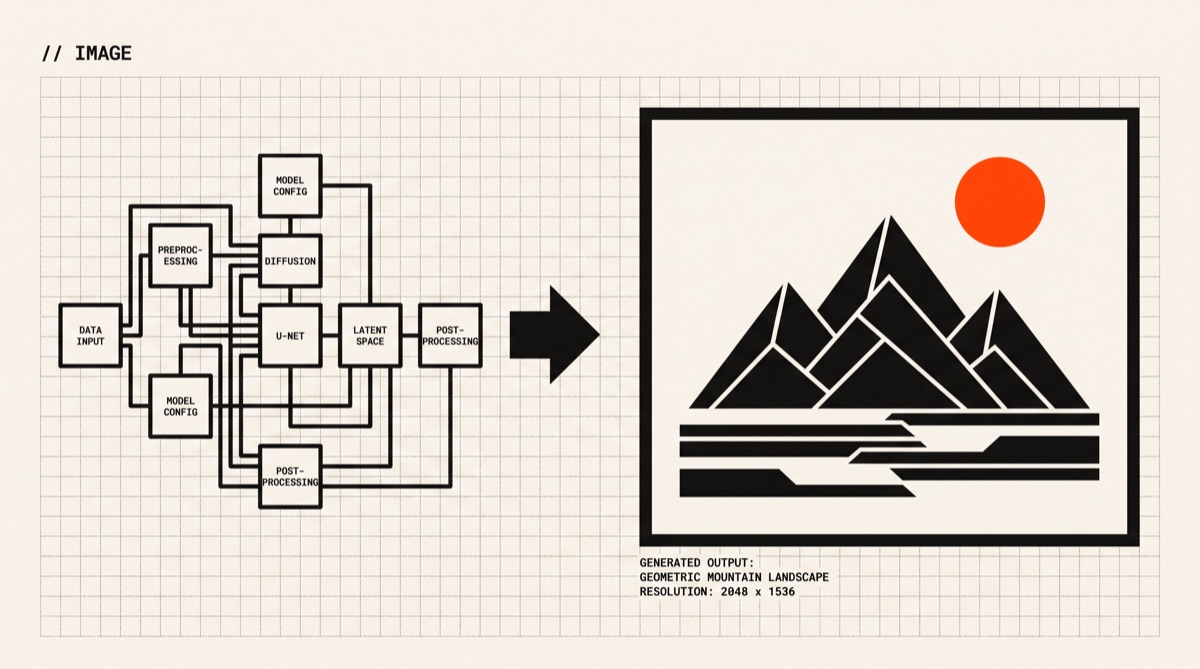
ComfyUI is a node-basedStable Diffusion interface — you connect boxes to build image pipelines. Runs on your laptop. No API key, no cloud bill, no monthly subscription. We'll get you from zero to your first generated image in about 15 minutes.

// Build stats

  • Total time~15 min
  • Number of steps5
  • DifficultyMedium
  • Worked first time80%
  • Need a GPU?Recommended
  • Need an API key?No
What you will build▶ play preview

A node-based AI image studio, running entirely on your own machine.

Type a prompt, press Queue. ComfyUI runs Stable Diffusion locally — your images never leave your computer. You get a full workflow editor, custom nodes, and support for every major model: SDXL, SD 1.5, Flux, and more.

Prompt in → image out →
“a photorealistic cat sitting on a Tokyo rooftop at golden hour, 8k, sharp focus”
// Before you start

What you need (4 things)

  • Python 3.10 or newerCheck with python3 --version. Install from python.org/downloads if needed.
  • GitCheck with git --version. Install from git-scm.com if not found.
  • 5 GB+ free disk space3 GB for Python dependencies (mostly PyTorch), 2–7 GB for the model file you download in step 5.
  • 15 minutes (maybe 25 on a slow connection)PyTorch is a large download. Everything else is quick.
SkimAlready know what you're doing?
Copy all commands ↓
# 2. Clone
$ git clone https://github.com/comfyanonymous/ComfyUI && cd ComfyUI

# 3. Install (Mac/Linux)
$ pip3 install -r requirements.txt

# 4. Launch
$ python3 main.py

# Then open http://127.0.0.1:8188 in your browser
01
Step 1 of 5

Check Python + Git

1–2 min

ComfyUI needs Python 3.10+ and Git. Both are often already on your computer — we just need to confirm. If either command below fails, install the missing tool first. This is the only boring step.

Terminal · mac
$ python3 --version $ git --version

If python3says “command not found”, install Python from python.org/downloads. If git fails, macOS will offer to install Xcode Command Line Tools — click Install.

What you should see
$ python3 --version
Python 3.11.9
$ git --version
git version 2.44.0
This might happen (Windows)

python opens the Microsoft Store instead of running

(Microsoft Store window opens instead of printing a version)

Windows ships a “python” stub that redirects to the Store. Download the real Python 3.11 installer from python.org/downloads — on the first screen, check “Add Python to PATH”, then install. Close and reopen your terminal.

Checkpoint

Do both commands print version numbers — Python 3.10+ and any Git version?

02
Step 2 of 5

Download ComfyUI

1–2 min

We use Git to copy ComfyUI's code from GitHub to your computer. This creates a ComfyUI folder wherever you run the command. About 50MB — just the interface, no AI model yet (that comes in step 5).

Terminal · mac
$ git clone https://github.com/comfyanonymous/ComfyUI $ cd ComfyUI
What you should see
Cloning into 'ComfyUI'...
remote: Counting objects: 4521, done.
Receiving objects: 100% (4521/4521), 47.3 MiB | 9.2 MiB/s
Resolving deltas: 100% (3021/3021), done.
This might happen

SSL error or connection timeout

fatal: unable to access 'https://github.com/...': SSL certificate problem

Some corporate or school Wi-Fi blocks GitHub. Try a home network or mobile hotspot. You can also download the ZIP directly from the GitHub page and unzip it.

Checkpoint

Is there a ComfyUI folder with files inside, and does your terminal show you are inside it?

03
Step 3 of 5

Install dependencies

3–10 min

ComfyUI needs PyTorch (the AI engine) and a handful of other Python packages. One command installs everything from the requirements.txt file. PyTorch is about 2GB. This step takes time on a slow connection.

Terminal · mac
$ pip3 install -r requirements.txt

On M1/M2/M3 Mac, PyTorch uses the Metal GPU automatically — image generation is fast. On Intel Mac it runs on CPU and is noticeably slower for larger models.

What you should see (lots of text — do not panic)
Collecting torch
Downloading torch-2.x.x-...whl (2.0 GB)
... (this takes several minutes)
Successfully installed torch torchvision torchaudio ...
This might happen (Ubuntu 23+)

externally-managed-environment

error: externally-managed-environment

Newer Ubuntu/Debian protect the system Python. Create a virtual environment instead: python3 -m venv venv, then source venv/bin/activate, then run the pip commands again inside it. The venv/ folder lives inside your ComfyUI directory.

Checkpoint

Did the command finish with “Successfully installed” and no red error lines at the end?

04
Step 4 of 5

Launch ComfyUI

1 min

One command starts the server. ComfyUI opens a browser interface at http://127.0.0.1:8188. Nothing leaves your computer — it runs entirely locally.

Terminal · mac
$ python3 main.py

Intel Mac with no good GPU? Add --cpu: python3 main.py --cpu

What you should see
Total VRAM 8589 MB, total RAM 16384 MB
pytorch version: 2.3.1
Starting server
To see the GUI go to: http://127.0.0.1:8188
This might happen

Port 8188 already in use

OSError: [Errno 98] Address already in use

Another program (or a previous ComfyUI session) is using port 8188. Close the other program, or run on a different port: python3 main.py --port 8189 then open http://127.0.0.1:8189.

Checkpoint

Does the terminal say “To see the GUI go to: http://127.0.0.1:8188”?

05
Step 5 of 5 · Final

Generate your first image

5–30 min

Open http://127.0.0.1:8188in your browser. You'll see a node graph — that's ComfyUI's workflow editor. Before you can generate, you need a model file(the actual AI weights). Here's the fastest way to get one.

Get a free model — pick one
SD Turbo (~2 GB) — fastest, good for testing
stabilityai/sd-turbo on Hugging Face → download sd_turbo.safetensors
SDXL Base (~6.5 GB) — best quality
stabilityai/stable-diffusion-xl-base-1.0 on Hugging Face

Put the .safetensors file in the checkpoints folder:

Terminal · mac
$ mv ~/Downloads/sd_turbo.safetensors models/checkpoints/

Back in the browser:

  1. Find the Load Checkpoint node on the default canvas.
  2. Click the model name dropdown — your file should appear. Select it.
  3. Click the positive prompt text box. Type something: a photorealistic cat on a rooftop at sunset, 8k
  4. Press the big Queue Prompt button (right side of the screen).
What you should see in the terminal
got prompt
Prompt executed in 4.2s
✓ image saved to ComfyUI/output/ComfyUI_00001_.png
This might happen

Dropdown is empty — no model to select

(dropdown shows "None" or is blank)

The model file is not in the right place. Run ls models/checkpoints/ (Mac/Linux) or dir models\checkpoints (Windows) to confirm the file is there. Then refresh the browser — ComfyUI scans the folder on page load.

Checkpoint

Did an image appear in the browser canvas and save to ComfyUI/output/?

Yes — you're done! ✓No, I am stuck
// Status

cooked. baked. worked.

You just ran a full Stable Diffusion pipeline on your own hardware. No cloud. No API key. No monthly bill. The image is yours.

$ python3 main.py
✓ Server started at http://127.0.0.1:8188
✓ Prompt executed in 4.2s
✓ Image saved to output/ComfyUI_00001_.png
cooked · baked · worked ✓
// the honest part

What we did and didn't test

The 80% success rate and 15-minute estimate come from test runs on M2 Mac (fast), Windows with RTX 3070 (fast), and Windows CPU-only (very slow — 20+ minutes per image). Linux with CUDA was the smoothest of the three.

Three things the README does not spell out: (1) No model is included — ComfyUI launches without one but cannot generate anything until you drop a .safetensors file into models/checkpoints/. This surprises most first-time users. (2) CPU mode is very slow — expect 5–30 minutes per image on a modern laptop without a GPU. Apple Silicon (M1/M2/M3) is dramatically faster than any Intel CPU. (3) The interface looks intimidating — the default canvas is a workflow graph, not a simple form. Use the default workflow as-is first. Ignore the nodes until your first image works.

We did not test: AMD GPUs on Windows (ROCm support is experimental), Python 3.8 or 3.9 (may work but not confirmed), or ComfyUI Manager (the plugin ecosystem). All documented in the ComfyUI wiki if you need them.

// Things that broke for other people

Trouble? Try these first.

5 fixes
WindowsStep 1 · Python PATHmost common
“python is not recognized” or the Store opens
python : The term 'python' is not recognized as a cmdlet
Install Python from python.organd check “Add Python to PATH” on the first screen. If the Store keeps opening, search for “App execution aliases” in Windows Settings and disable both Python aliases.
AllStep 5 · No modelmost common
Dropdown is empty — no model appears
The model file must be in ComfyUI/models/checkpoints/. Confirm with ls models/checkpoints/ (Mac/Linux) or dir models\checkpoints (Windows). The file must end in .safetensors or .ckpt. Refresh the browser after moving it.
NVIDIAStep 5 · GPU memory
CUDA out of memory when generating
torch.cuda.OutOfMemoryError: CUDA out of memory.
Your GPU does not have enough VRAM for the chosen model. SD Turbo needs ~4 GB, SDXL needs ~8 GB. Use a smaller model, or add --lowvram flag: python3 main.py --lowvram — slower but works on 4 GB GPUs.
LinuxStep 3 · pip error
“externally-managed-environment” on Ubuntu 23+
error: externally-managed-environment
Use a virtual environment: python3 -m venv venv then source venv/bin/activate. Run all pip commands inside the activated venv. The venv/ folder stays inside your ComfyUI directory.
AllStep 5 · Graph error
“Error: Cannot execute because node X is missing”
You loaded a workflow that needs custom nodes you haven't installed. For first-time use, stick to the default workflow that loads when you open ComfyUI. If you downloaded someone else's workflow, install ComfyUI Manager — it handles missing nodes automatically.
// the daily build

Liked this? One a day, in your email.

Tomorrow's best AI project. Same kind of guide. Free. No spam ever.