LIVEReading: Self-Host Privacy-First Analytics With Plausible CETotal time: 12 minSteps: 6Worked first time: 72% LIVEReading: Self-Host Privacy-First Analytics With Plausible CETotal time: 12 minSteps: 6Worked first time: 72%
CBW
Mediumgithub.com/plausible/analytics2026-05-31

Self-Host Privacy-First Analytics With Plausible CE

Run your own Google Analytics alternative on a VPS in under 30 minutes. No cookies, no GDPR headaches, no data sent to Big Tech.

// Build stats

  • Total time12 min
  • Number of steps6
  • DifficultyMedium
  • Worked first time72%
// Before you start

What you need

  • A Linux VPS with at least 2 GB RAM (Ubuntu 22.04 recommended)
  • A domain name pointed at your server's IP address
  • SSH access to your server
  • Docker and Docker Compose installed on the server
  • Port 80 and 443 open in your firewall
01
Step 1 of 6

Install Docker if you haven't already

3 min

Plausible CE runs entirely inside Docker containers, so you don't need to install Elixir or any programming language. This one command installs Docker and Docker Compose on a fresh Ubuntu server. If Docker is already installed, skip this step.

Terminal · mac
$ curl -fsSL https://get.docker.com | sh && sudo usermod -aG docker $USER && newgrp docker
What you should see
You should see Docker downloading and installing. The last line will say something like 'Docker version 24.x.x'. Running 'docker --version' afterwards confirms it worked.
This might happen

Permission denied when running docker commands after install

Log out of your SSH session completely and log back in. The group change needs a fresh session to take effect.

02
Step 2 of 6

Download the official Plausible CE setup files

2 min

Plausible publishes a ready-made folder of config files on GitHub. This command downloads that folder, enters it, and grabs the latest stable release tag. You are not writing any code — just pulling files the Plausible team already wrote.

Terminal · mac
$ git clone https://github.com/plausible/community-edition plausible && cd plausible
What you should see
A new folder called 'plausible' appears. Inside you will see files including docker-compose.yml and plausible-conf.env.
This might happen

'git' command not found

Run 'sudo apt install git -y' first, then retry.

03
Step 3 of 6

Generate a secret key and set your domain

3 min

Plausible needs two things before it can start: a random secret key (used to secure sessions) and your domain name. Run the first command to generate the key, then open the config file and paste it in alongside your domain. You will edit exactly two lines in one plain-text file.

Terminal · mac
$ openssl rand -base64 48
$
$ # Copy the output, then open the config file:
$ nano plausible-conf.env
$
$ # Inside the file, set these two lines (replace the example values):
$ # SECRET_KEY_BASE=<paste your generated key here>
$ # BASE_URL=https://analytics.yourdomain.com
What you should see
The openssl command prints a long string of random characters. After saving the file (Ctrl+O, Enter, Ctrl+X in nano), running 'cat plausible-conf.env' should show your key and domain filled in.
This might happen

BASE_URL still shows the placeholder 'localhost' value

Make sure you replaced the full placeholder line including 'http://localhost:8000'. The URL must match the domain you pointed at this server, including 'https://'.

04
Step 4 of 6

Start Plausible with Docker Compose

5 min

This single command tells Docker to download all the Plausible pieces (the app, the database, the analytics engine) and start them together. The '-d' flag runs everything in the background so it keeps going after you close your terminal.

Terminal · mac
$ docker compose up -d
What you should see
Docker pulls several images (this takes a few minutes on first run), then prints lines ending in 'Started'. Running 'docker compose ps' should show containers named plausible, plausible_db, and plausible_events_db all with status 'Up'.
This might happen

One container exits immediately or shows 'Restarting'

Run 'docker compose logs plausible' to read the error. The most common cause is a missing or malformed SECRET_KEY_BASE in plausible-conf.env. Fix the value and run 'docker compose up -d' again.

05
Step 5 of 6

Set up HTTPS with a reverse proxy

10 min

By default Plausible listens on port 8000 with no HTTPS. Visitors and your tracking script need a secure connection. The simplest path is Caddy, a web server that automatically gets and renews a free SSL certificate for your domain. These commands install Caddy and write a two-line config that proxies your domain to Plausible.

Terminal · mac
$ sudo apt install -y debian-keyring debian-archive-keyring apt-transport-https curl
$ curl -1sLf 'https://dl.cloudsmith.io/public/caddy/stable/gpg.key' | sudo gpg --dearmor -o /usr/share/keyrings/caddy-stable-archive-keyring.gpg
$ curl -1sLf 'https://dl.cloudsmith.io/public/caddy/stable/debian.deb.txt' | sudo tee /etc/apt/sources.list.d/caddy-stable.list
$ sudo apt update && sudo apt install caddy -y
$
$ # Write the Caddyfile (replace analytics.yourdomain.com with your actual domain):
$ echo 'analytics.yourdomain.com {
$ reverse_proxy localhost:8000
$ }' | sudo tee /etc/caddy/Caddyfile
$
$ sudo systemctl reload caddy
What you should see
Caddy reloads without errors. Within 30 seconds, visiting https://analytics.yourdomain.com in a browser should show the Plausible registration page. The browser padlock should be green.
This might happen

Caddy fails to get a certificate and shows 'no such host' or timeout

Your domain's DNS A record must point to this server's public IP before Caddy can issue a certificate. Check with 'dig analytics.yourdomain.com' and wait for DNS to propagate (can take up to 30 minutes).

06
Step 6 of 6

Create your account and add the tracking snippet

5 min

Open your Plausible URL in a browser. You will be prompted to create an admin account — this is the only account unless you invite others. After logging in, add your website domain. Plausible gives you a one-line script tag to paste into the <head> of every page you want to track. That is the only change needed on your website.

Terminal · mac
$ # No terminal command needed for this step.
$ # 1. Go to https://analytics.yourdomain.com
$ # 2. Register your admin account.
$ # 3. Click 'Add Website' and enter your site's domain.
$ # 4. Copy the snippet shown — it looks like:
$ # <script defer data-domain="yoursite.com" src="https://analytics.yourdomain.com/js/script.js"></script>
$ # 5. Paste it into the <head> section of your website's HTML.
What you should see
After adding the snippet and visiting your website, return to the Plausible dashboard. Within a minute you should see a live visitor count greater than zero.
This might happen

Dashboard stays at zero visitors even after visiting your site

Check that the snippet's 'data-domain' exactly matches the domain you registered in Plausible (no www mismatch). Also confirm your browser's ad blocker is not blocking the script during testing.

// Status

cooked. baked. worked.

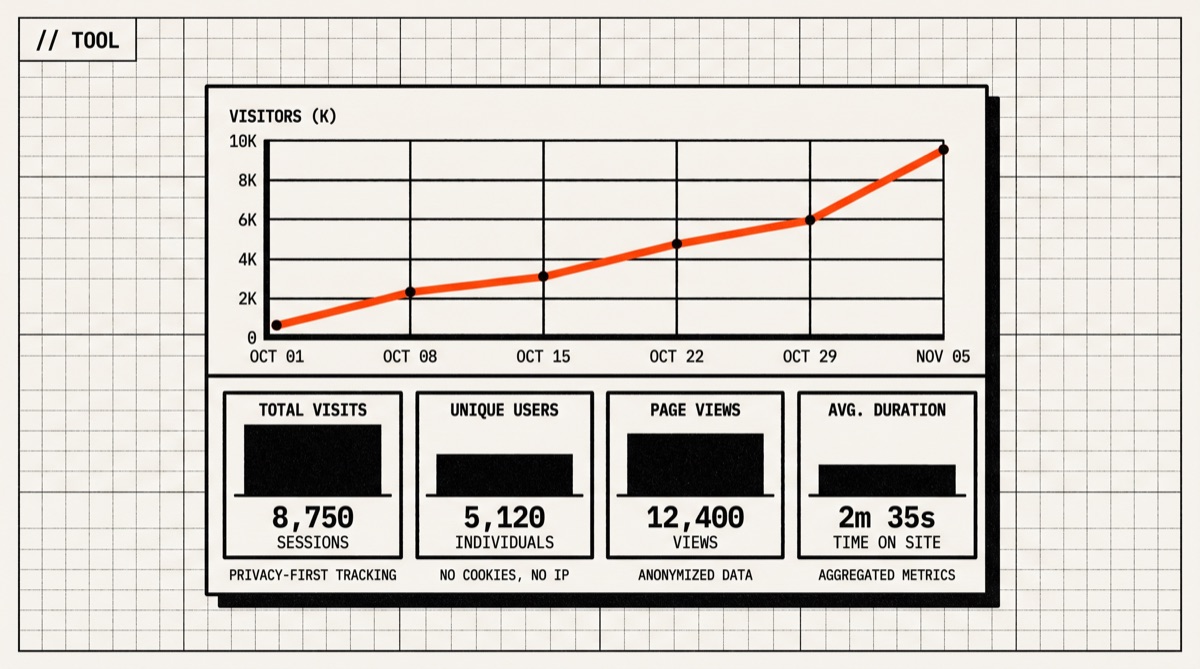
A fully working, private analytics dashboard at your own domain. Your website's traffic is tracked without cookies, no data leaves your server, and you have a clean single-page dashboard showing visitors, page views, referrers, and more.

// the honest bit

The honest part

This guide sets up Plausible Community Edition, which is free but updated only twice a year. Premium features like marketing funnels, revenue goals, and SSO are not included — those require the paid cloud plan. You are also responsible for server uptime, backups, and security patches. If your server goes down, you lose tracking data for that period. For low-traffic personal sites a $6/month VPS is fine; high-traffic sites may need more RAM. The self-hosted version does not include Plausible's advanced bot filtering.