LIVEReading: Run Any AI Model Locally — No GPU, No Cloud NeededTotal time: 8 minSteps: 5Worked first time: 78% LIVEReading: Run Any AI Model Locally — No GPU, No Cloud NeededTotal time: 8 minSteps: 5Worked first time: 78%
CBW
Easygithub.com/mudler/LocalAI2026-05-19

Run Any AI Model Locally — No GPU, No Cloud Needed

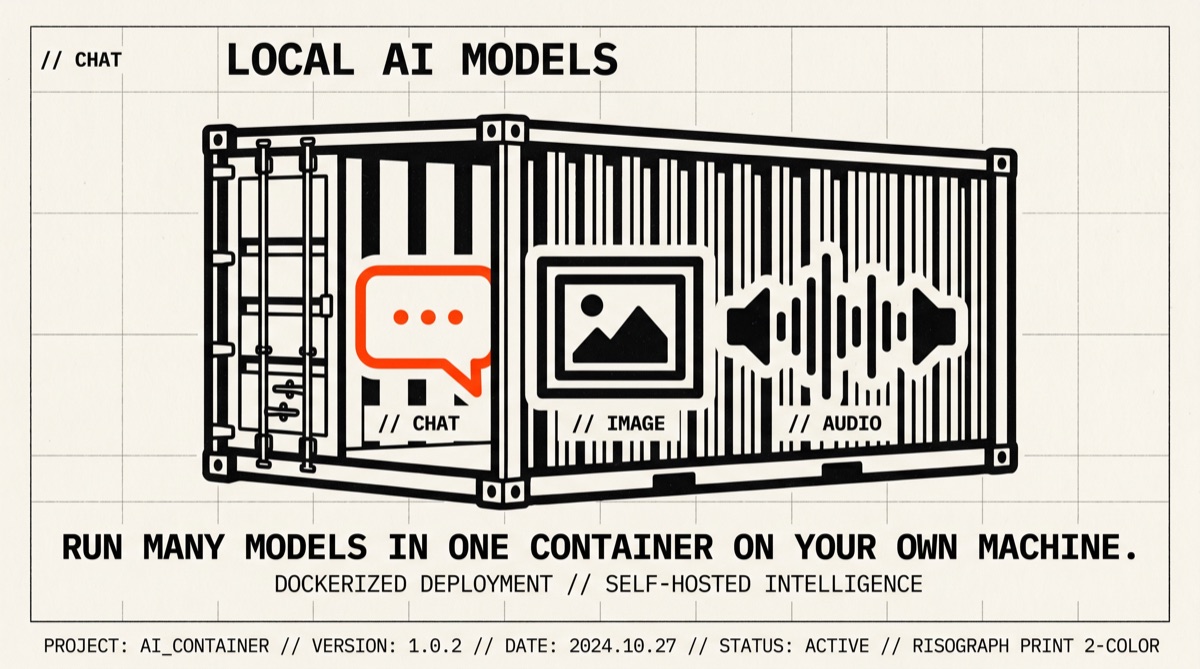
LocalAI lets you run LLMs, image, audio, and vision models on your own machine using Docker. No GPU required, no data leaves your computer.

// Build stats

  • Total time8 min
  • Number of steps5
  • DifficultyEasy
  • Worked first time78%
// Before you start

What you need

  • Docker Desktop installed and running (docker.com/get-started)
  • At least 8 GB of free RAM (16 GB recommended for larger models)
  • At least 10 GB of free disk space
  • A stable internet connection for the first model download
  • Basic comfort opening a terminal or command prompt
01
Step 1 of 5

Pull and start LocalAI with Docker

5 min

This single command downloads the LocalAI container image and starts it on your machine. Port 8080 is opened so you can reach the web interface from your browser. The '--name local-ai' part gives the container a friendly name so you can restart it later without re-downloading everything. This is the CPU-only version — it works on any computer.

Terminal · mac
$ docker run -ti --name local-ai -p 8080:8080 localai/localai:latest
What you should see
You should see log lines scrolling by ending with something like: 'LocalAI API is listening on 0.0.0.0:8080'
This might happen

Docker says the port 8080 is already in use

Change the left side of the port mapping: use -p 9090:8080 instead, then open localhost:9090 in your browser

02
Step 2 of 5

Open the LocalAI web interface

1 min

Once the container is running, LocalAI serves a built-in web UI. Open your browser and go to the address below. You should see the LocalAI dashboard where you can browse models, start chats, and manage settings. Keep the terminal window open — closing it stops the server.

Terminal · mac
$ open http://localhost:8080
What you should see
A LocalAI dashboard page loads in your browser showing a model gallery and navigation menu.
This might happen

'open' command not found on Windows

Just type http://localhost:8080 directly into your browser address bar

03
Step 3 of 5

Download and run a small chat model

10-20 min

Open a second terminal window and run this command. It tells LocalAI to download a small, fast version of Meta's Llama 3.2 model (about 800 MB). The 'q4_k_m' part means it is a compressed version that runs well on CPU. The download happens once and is cached inside the container for future use.

Terminal · mac
$ docker exec local-ai local-ai run llama-3.2-1b-instruct:q4_k_m
What you should see
You will see download progress bars, then a message that the model is loaded and ready.
This might happen

Download stalls or fails partway through

Run the same command again — LocalAI resumes partial downloads. Make sure you have at least 2 GB of free disk space.

04
Step 4 of 5

Send your first chat message via the web UI

2 min

Go back to your browser at localhost:8080. Click on 'Chat' in the navigation. Select the model you just downloaded from the dropdown (it will appear as llama-3.2-1b-instruct). Type a message in the input box and press Enter. The model runs entirely on your machine — nothing is sent to any external server.

Terminal · mac
$ http://localhost:8080
What you should see
The model replies to your message directly in the browser chat window within a few seconds.
This might happen

The model does not appear in the dropdown

Wait 30 seconds and refresh the page. If it still does not appear, check the first terminal window for error messages from the container.

05
Step 5 of 5

Stop and restart LocalAI later

1 min

When you are done, you can stop the container. Your downloaded models are saved inside the named container, so next time you just restart it — no re-downloading needed. Use these two commands: the first stops it, the second starts it again later.

Terminal · mac
$ docker stop local-ai
$
$ # To start again later:
$ docker start -i local-ai
What you should see
After 'docker stop', the terminal shows 'local-ai'. After 'docker start', the server log appears again and the web UI is accessible.
// Status

cooked. baked. worked.

A fully local AI server running on your machine at localhost:8080, with a working chat interface powered by a small Llama model — no internet connection needed after setup, no data sent anywhere.

// the honest bit

The honest part

The 1B model included in this guide is small and fast but noticeably less capable than GPT-4 or Claude. Larger models (7B+) require 16 GB+ RAM and are much slower on CPU — expect 1-5 tokens per second. If you delete the container with 'docker rm', all downloaded models are lost and must be re-downloaded. GPU acceleration requires extra Docker flags and driver setup not covered here. The macOS DMG app is unsigned and requires a manual security bypass.